跳转到主要内容
本章带你从零实现一个最小可运行的 Supernote 插件示例:
  • 在 NOTE/DOC 的工具栏注册一个按钮
  • 在 NOTE/DOC 的套索工具栏注册一个按钮
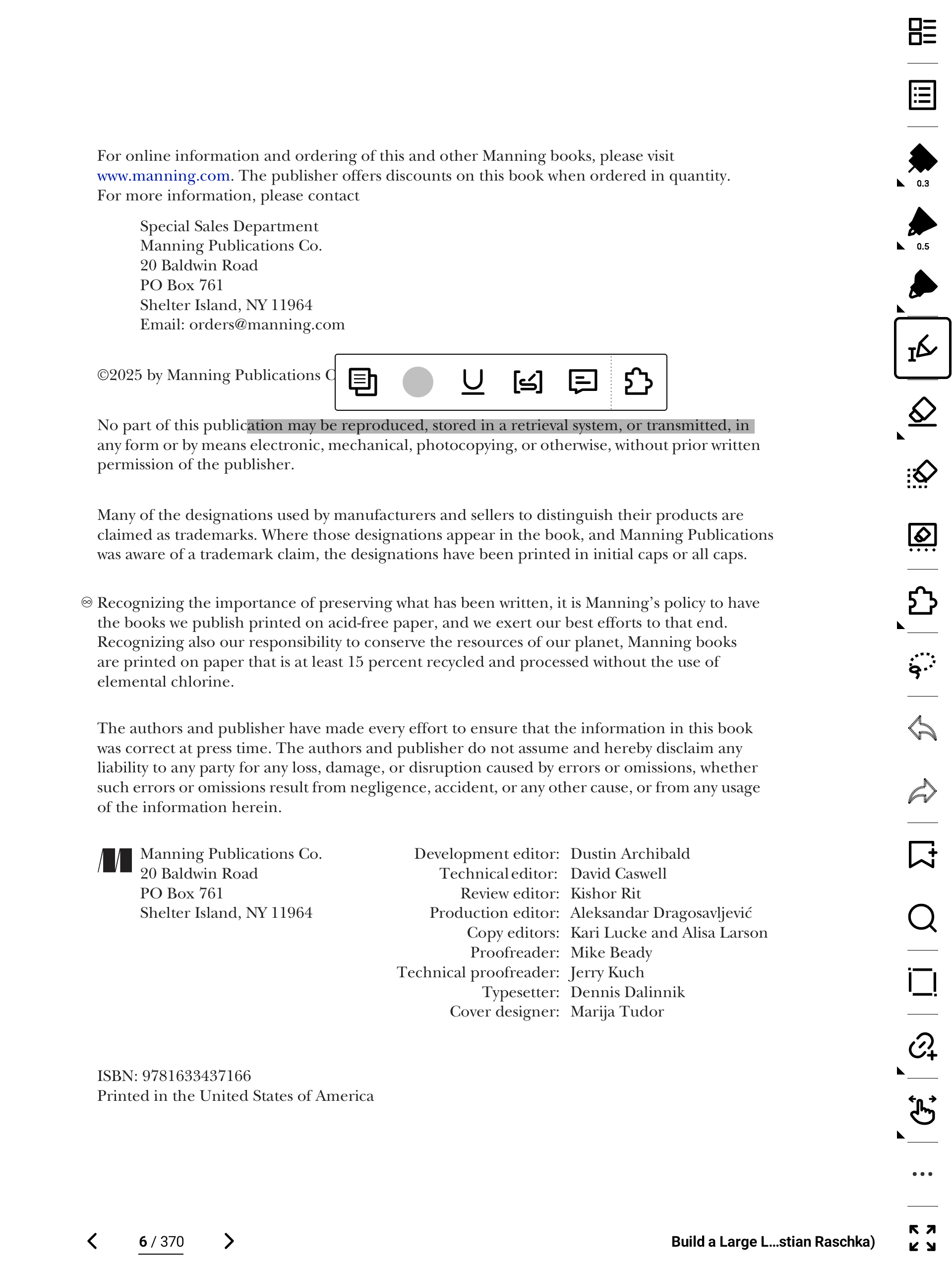
  • 在 DOC 的划词工具栏注册一个按钮
点击任意按钮都会打开同一个 “Hello World” 插件界面。三类按钮对应三种插件入口。

插件项目创建

插件项目本质上是一个 React Native 项目。建议使用社区 CLI 的 npx 方式创建工程(通常不需要全局安装 react-native-cli)。 如果你曾经全局安装过旧版 react-native-cli(或全局 react-native),建议先卸载,避免脚手架版本冲突:
npm uninstall -g react-native-cli react-native
卸载后无需重新安装全局 CLI,直接使用下方的 npx ... init 命令创建项目即可。 创建项目使用以下命令:
npx @react-native-community/cli init project_name --template @supernote-plugin/sn-plugin-template --version 0.79.2
project_name 是项目名称,可替换为你自己的名称,其余参数保持不变。下面以 plugin 为例: image
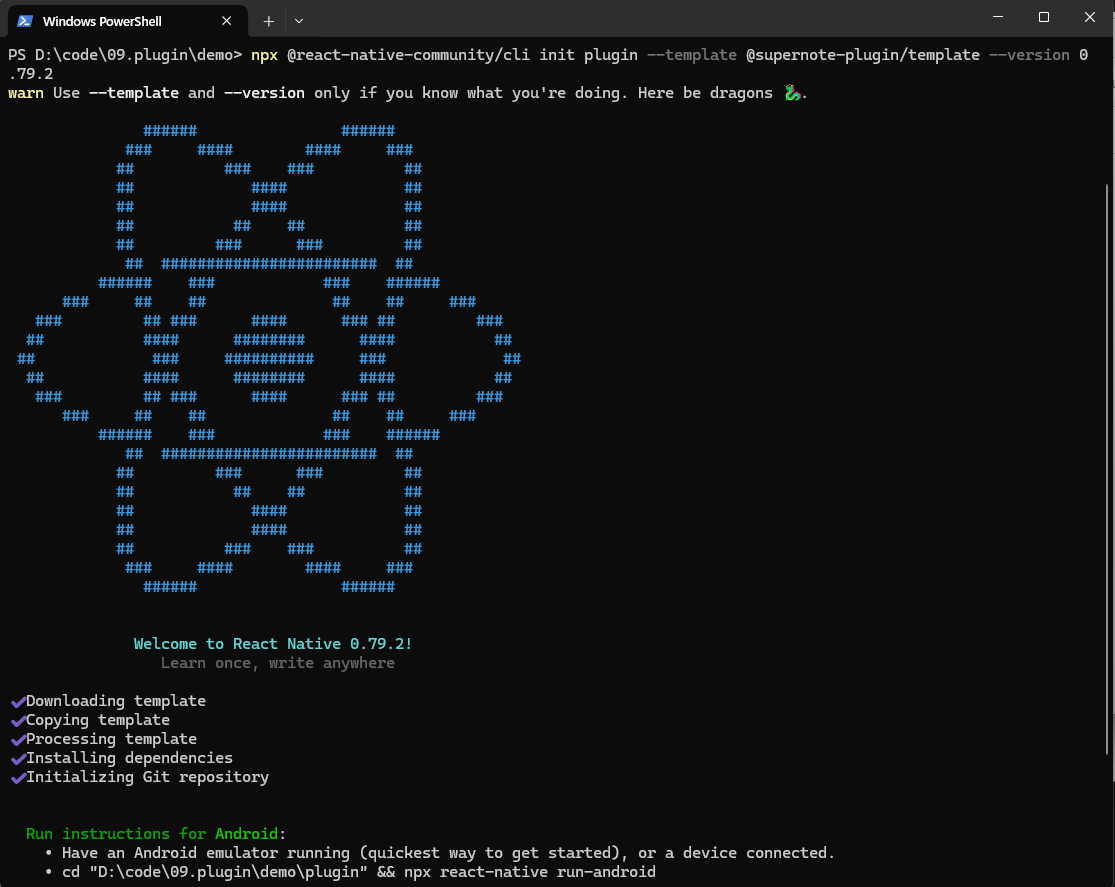
插件框架使用的 React Native 版本是 0.79.2。创建插件项目时必须使用同版本,否则插件可能无法运行或无法与宿主兼容。
大概几分钟之后会在命令运行目录生成一个“plugin”目录,这就是刚刚创建的插件项目,目录结构如下:
plugin\
|-- .bundle\\                          # Bundle configuration directory
|   \\-- config
|-- .eslintrc.js                       # ESLint configuration file
|-- .gitignore                         # Git ignore file configuration
|-- .prettierrc.js                     # Prettier code formatting configuration
|-- .watchmanconfig                    # Watchman configuration file
|-- *App.tsx                           # Main application component
|-- Gemfile                            # Ruby dependency management file
|-- README.md                          # Project documentation
|-- __tests__\\                        # Test files directory
|   \\-- App.test.tsx                  # App component test file
|-- *android\\                         # Android platform related files
|   |-- app\\                          # Android application configuration
|   |   |-- build.gradle               # App-level Gradle build file
|   |   |-- debug.keystore             # Debug signing file
|   |   |-- proguard-rules.pro         # ProGuard obfuscation rules
|   |   \\-- src\\                     # Android source code directory
|   |       |-- debug\\                # Debug version configuration
|   |       |   \\-- AndroidManifest.xml
|   |       \\-- main\\                # Main source code
|   |           |-- AndroidManifest.xml
|   |           |-- java\\             # Java/Kotlin source code
|   |           \\-- res\\             # Android resource files
|   |-- build.gradle                   # Project-level Gradle build file
|   |-- gradle\\                       # Gradle Wrapper
|   |   \\-- wrapper\\
|   |       |-- gradle-wrapper.jar
|   |       \\-- gradle-wrapper.properties
|   |-- gradle.properties              # Gradle properties configuration
|   |-- gradlew                        # Gradle Wrapper script (Unix)
|   |-- gradlew.bat                    # Gradle Wrapper script (Windows)
|   \\-- settings.gradle               # Gradle settings file
|-- app.json                           # React Native application configuration
|-- babel.config.js                    # Babel transpiler configuration
|-- buildPlugin.ps1                    # PowerShell build script
|-- buildPlugin.sh                     # Shell build script
|-- *index.js                          # Application entry point
|-- ios\\                              # iOS platform related files
|   |-- .xcode.env                     # Xcode environment configuration
|   |-- Podfile                        # CocoaPods dependency management
|   |-- plugin\\                       # iOS application directory
|   |   |-- AppDelegate.swift          # iOS application delegate
|   |   |-- Images.xcassets\\          # iOS image assets
|   |   |   |-- AppIcon.appiconset\\   # Application icon set
|   |   |   |   \\-- Contents.json
|   |   |   \\-- Contents.json
|   |   |-- Info.plist                 # iOS application info configuration
|   |   |-- LaunchScreen.storyboard    # Launch screen
|   |   \\-- PrivacyInfo.xcprivacy     # Privacy information configuration
|   \\-- plugin.xcodeproj\\            # Xcode project file
|       |-- project.pbxproj            # Project configuration
|       \\-- xcshareddata\\            # Shared data
|           \\-- xcschemes\\           # Build schemes
|               \\-- plugin.xcscheme
|-- jest.config.js                     # Jest testing framework configuration
|-- metro.config.js                    # Metro bundler configuration
|-- package-lock.json                  # npm dependency lock file
|-- *package.json                      # Project dependencies and scripts configuration
|-- *buildPlugin.ps1                   # 插件打包脚本(Windows平台)
|-- *buildPlugin.sh                    # 插件打包脚本(Linux/MacOS平台)
\\-- tsconfig.json                     # TypeScript configuration file
这是一个标准的 React Native 项目结构。上面带星号(*)的文件与目录是开发插件时最常用的部分:
  • index.js:插件入口(初始化与按钮注册)
  • App.tsx:插件界面入口(React 组件)
  • package.json:依赖与脚本配置
  • android/:Android 原生代码目录(需要原生能力时使用)
  • buildPlugin.ps1 / buildPlugin.sh:插件打包脚本
模板已内置插件 SDK(npm 包:sn-plugin-lib)。后续在代码中通过 import ... from 'sn-plugin-lib' 使用接口。

插件初始化

创建项目后会生成两个关键文件:index.jsApp.tsx。它们来自模板 @supernote-plugin/sn-plugin-template index.js 是 React Native 程序入口,也是插件入口。插件启动时会先执行该文件,因此插件初始化也在这里完成。 你必须先调用 PluginManager.init(),否则后续的插件接口调用会无效。示例代码如下:
import { AppRegistry, Image } from 'react-native';
import App from './App';
import { name as appName } from './app.json';
import { PluginManager } from 'sn-plugin-lib';

AppRegistry.registerComponent(appName, () => App);

PluginManager.init();
上述代码先引入 PluginManager,再在 AppRegistry.registerComponent(...) 之后调用 PluginManager.init() 完成初始化。 其余部分是 React Native 工程模板生成的:AppRegistry.registerComponent(...) 用于注册界面入口,对应组件为 App.tsx

按钮注册

插件支持三类入口按钮:
  1. 工具栏按钮:显示在 NOTE/DOC 的工具栏中
  2. 套索工具栏按钮:用户套索选中元素后显示在套索工具栏中
  3. 划词工具栏按钮:DOC 特有。用户在文档中选中一段文字后显示在划词工具栏中
注册按钮后,用户才能从 NOTE/DOC 进入插件。

工具栏按钮注册

工具栏按钮需要在 index.js 中注册,并且必须在 AppRegistry.registerComponent(...)PluginManager.init() 之后调用:
import { AppRegistry, Image } from 'react-native';
import App from './App';
import { name as appName } from './app.json';
import { PluginManager } from 'sn-plugin-lib';

AppRegistry.registerComponent(appName, () => App);

PluginManager.init();

PluginManager.registerButton(1, ['NOTE', 'DOC'], {
  id: 100,
  name: 'Side Button',
  icon: Image.resolveAssetSource(
    require('./assets/icon/icon.png'),
  ).uri,
  showType: 1,
});
注册按钮通过 PluginManager.registerButton(type, appTypes, buttonConfig) 完成,包含三个参数:
  • type:按钮类型。1 工具栏按钮,2 套索工具栏按钮,3 划词工具栏按钮(DOC 特有)
  • appTypes:按钮支持的应用类型数组。可选值:NOTEDOC
  • buttonConfig:按钮属性对象:
{
  id:按钮 ID,需唯一。建议定义后保持不变
  name: 按钮名称
  icon:按钮图标路径(绝对路径或 uri)。可通过 React Native 的 Image 获取资源 uri
  showType:展示类型。0:不展示插件界面;1:展示插件界面(默认 1)
}
showType=1 时,点击按钮后 PluginHost 会打开一个全屏容器,渲染插件界面。 showType=0 时,不展示界面,但插件仍会收到按钮事件,你可以在后台执行业务逻辑。 打包安装后,NOTE/DOC 的工具栏会出现一个插件入口按钮,如下图所示: image 上面代码注册的按钮名称为“Side Button”,点开插件图标就会多一个“Side Button”的按钮。
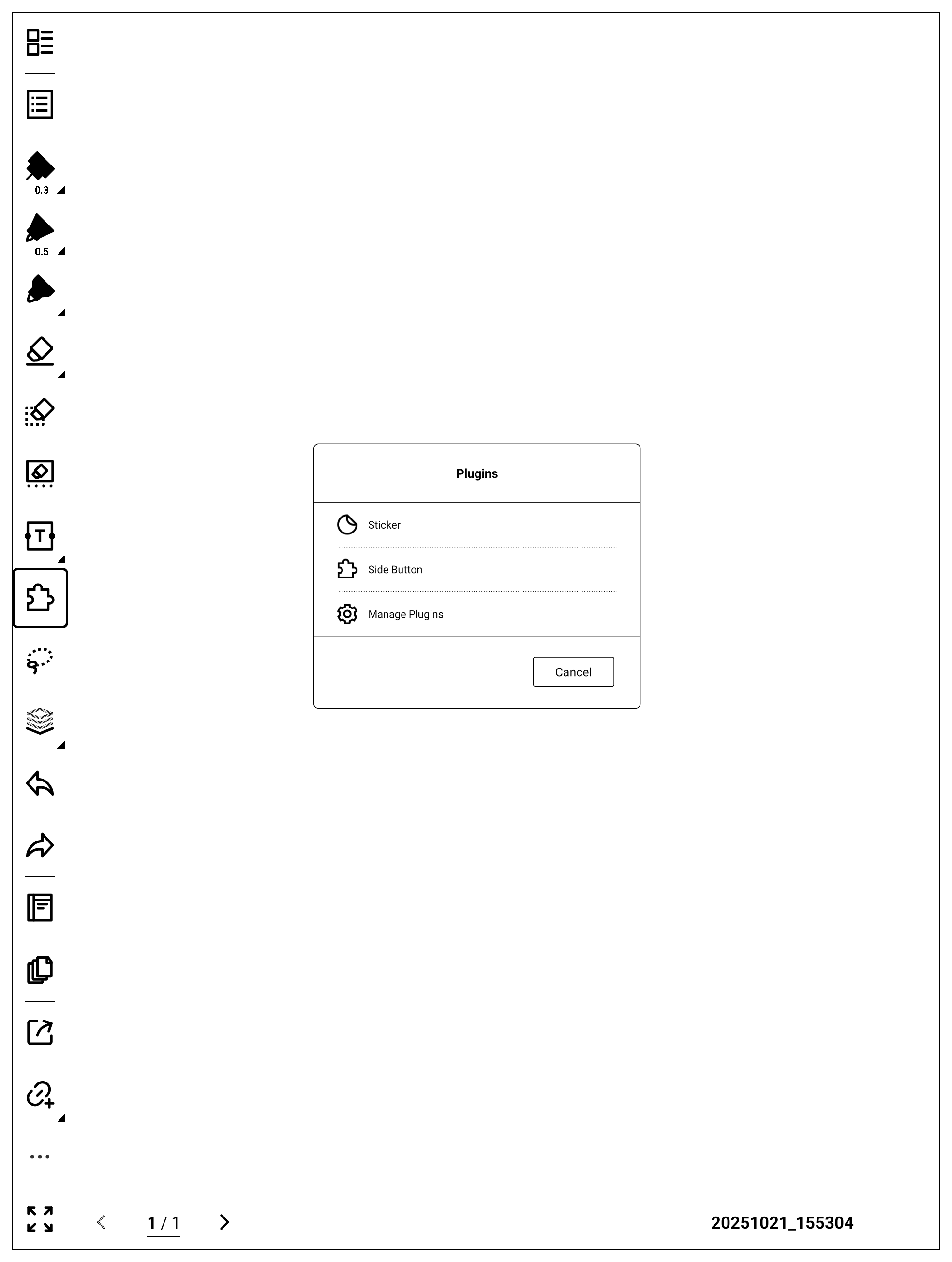
套索工具栏按钮注册

套索工具栏按钮同样使用 PluginManager.registerButton 注册:
import { AppRegistry, Image } from 'react-native';
import App from './App';
import { name as appName } from './app.json';
import { PluginManager } from 'sn-plugin-lib';

AppRegistry.registerComponent(appName, () => App);

PluginManager.init();

PluginManager.registerButton(1, ['NOTE', 'DOC'], {
  id: 100,
  name: 'Side Button',
  icon: Image.resolveAssetSource(
    require('./assets/icon/icon.png'),
  ).uri,
});

PluginManager.registerButton(2, ['NOTE', 'DOC'], {
  id: 200,
  name: 'Lasso Button',
  icon: Image.resolveAssetSource(
    require('./assets/icon/icon.png'),
  ).uri,
  editDataTypes: [0, 1, 2, 3, 4, 5],
  showType: 1,
});
将第一个参数设置为 type=2,按钮就会显示在套索工具栏中。 第三个参数和工具栏按钮注册不太一样,数据说明如下:
{
  id:按钮ID,唯一性,定义好之后不可变,由插件自己定义
  name: 按钮名称
  icon:按钮图标,绝对路径或uri值,可以通过React Native官方的Image获取URI路径
  editDataTypes:当前套索的数据类型数组,只有满足列表内的类型才会在套索工具栏上出现对应插件按钮
    0:手写笔迹
    1:标题
    2:图片
    3:文字
    4:链接
    5:几何图形
  showType:显示类型,0:不显示插件界面,1:显示插件界面,默认为1
}
与工具栏按钮相比,套索按钮增加了 editDataTypes。它是数组,用于指定“哪些套索数据类型出现时才展示该按钮”。 根据上面的代码,设置完之后,插件打包安装,套索笔划就会出现“Lasso Button”的按钮,如下图: image
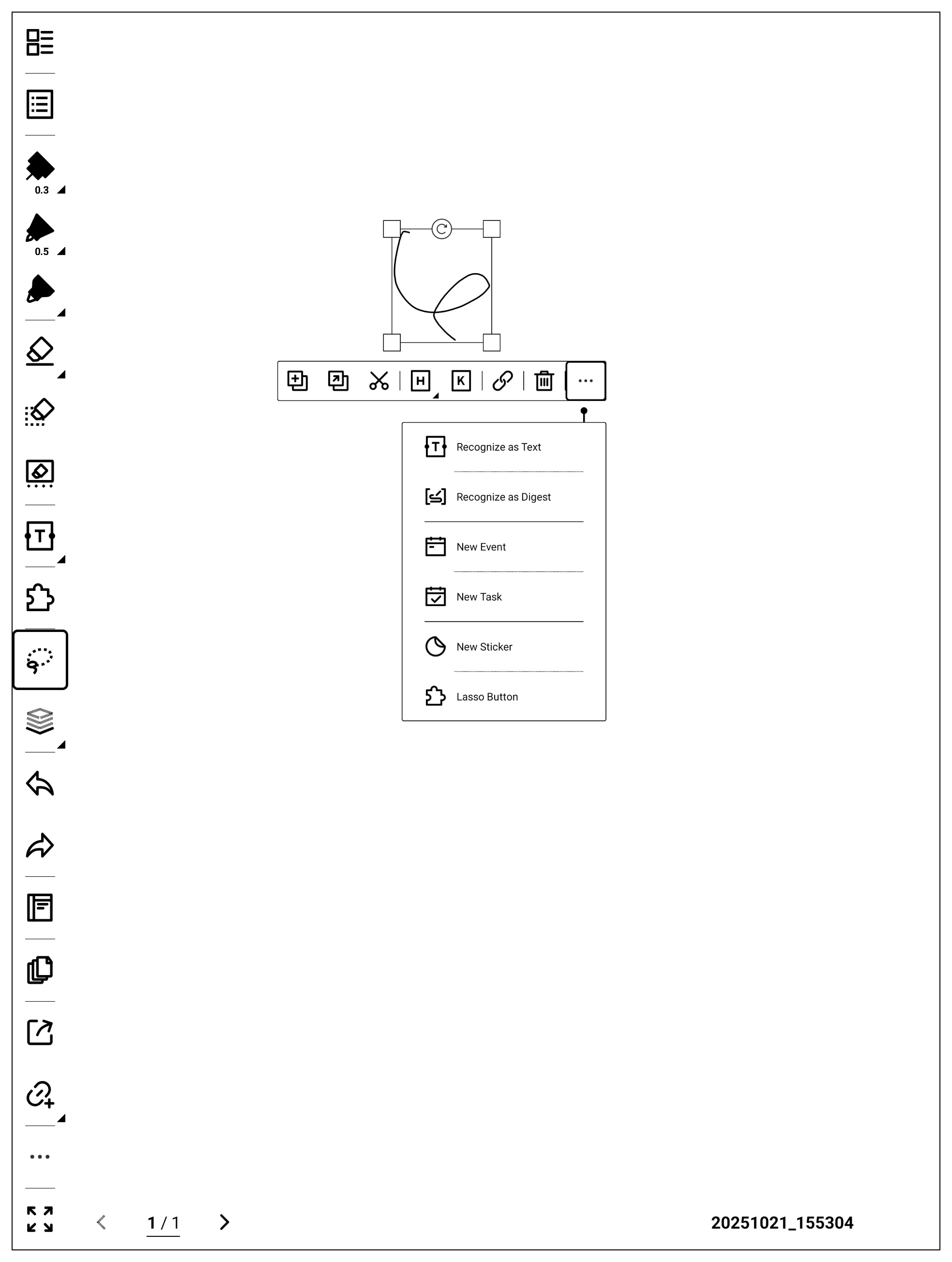
划词按钮注册

划词按钮是 DOC 特有按钮,同样通过 PluginManager.registerButton 注册:
import { AppRegistry, Image } from 'react-native';
import App from './App';
import { name as appName } from './app.json';
import { PluginManager } from 'sn-plugin-lib';

AppRegistry.registerComponent(appName, () => App);

PluginManager.init();

PluginManager.registerButton(1, ['NOTE', 'DOC'], {
  id: 100,
  name: 'Side Button',
  icon: Image.resolveAssetSource(
    require('./assets/icon/icon.png'),
  ).uri,
});

PluginManager.registerButton(2, ['NOTE', 'DOC'], {
  id: 200,
  name: 'Lasso Button',
  icon: Image.resolveAssetSource(
    require('./assets/icon/icon.png'),
  ).uri,
  editDataTypes: [0, 1, 2, 3, 4, 5],
  showType: 1,
});

PluginManager.registerButton(3, ['NOTE', 'DOC'], {
  id: 300,
  name: 'Selection Button',
  icon: Image.resolveAssetSource(
    require('./assets/icon/icon.png'),
  ).uri,
  showType: 1,
});
将第一个参数设置为 type=3,按钮就会显示在 DOC 的划词工具栏中: image

插件界面编写

App.tsx 是插件界面的入口组件。模板默认实现为一个 “Hello World” 界面,你可以在该文件中修改 UI:
import React from 'react';
import {
  StatusBar,
  StyleSheet,
  Text,
  useColorScheme,
  View,
} from 'react-native';

/**
 * Plugin View
 * Displays Hello World text in the center of the screen
 */
function App(): React.JSX.Element {
  const isDarkMode = useColorScheme() === 'dark';

  return (
    <View style={styles.container}>
      <StatusBar
        barStyle={isDarkMode ? 'light-content' : 'dark-content'}
        backgroundColor={isDarkMode ? '#000000' : '#ffffff'}
      />
      <Text
        style={[styles.helloText, {color: isDarkMode ? '#ffffff' : '#000000'}]}
      >
        Hello World
      </Text>
    </View>
  );
}

const styles = StyleSheet.create({
  container: {
    flex: 1,
    justifyContent: 'center',
    alignItems: 'center',
    backgroundColor: '#ffffff',
  },
  helloText: {
    fontSize: 24,
    fontWeight: '600',
    textAlign: 'center',
  },
});

export default App;
以上代码由模板自动生成。你可以在 App.tsx 中按需修改界面。 当前 App.tsx 仅在屏幕中间显示 “Hello World”,界面如下: image 点击之前注册的 “Side Button / Lasso Button / Selection Button” 任意一个按钮即可打开该界面。

插件打包

本节介绍如何将插件项目打包为可安装的插件包。 模板工程会包含两个打包脚本:buildPlugin.ps1(Windows)与 buildPlugin.sh(Linux/macOS)。在插件项目根目录执行对应脚本即可完成打包: Windows 运行以下命令:
.\buildPlugin.ps1
Linux、macOS 运行以下命令:
./buildPlugin.sh
首次运行打包脚本时,会在项目根目录生成 PluginConfig.json,示例内容如下:
{
  "name": "plugin",
  "pluginKey": "plugin",
  "pluginID": "98blcl1mp5fxamrm",
  "iconPath": "",
  "desc": "",
  "versionCode": "1",
  "versionName": "0.0.1",
  "jsMainPath": "index"
}
PluginConfig.json 是插件配置文件。它只会在首次打包时生成,后续需要你手动维护。字段说明如下:
字段说明
name插件名称,可手动修改。
pluginKey插件 key,需要与 AppRegistry.registerComponent(...) 的第一个参数保持一致,否则插件无法运行。
pluginID插件唯一 ID(用于区分不同插件),由打包命令随机生成;生成后不要修改,否则会被识别为“另一个新插件”。
iconPath插件图标路径(相对项目根目录),需要手动填写。
versionCode插件版本号。
versionName插件版本名称。
desc插件功能描述。
jsMainPath插件入口文件名(不含扩展名),示例为 index,建议不要修改。
author插件作者(可选),需要手动添加,打包命令不会自动生成。
打包完成后会生成 build 目录,结构如下:
build\
|-- generated\\
|   |-- PluginConfig.json
|   |-- drawable-mdpi\\
|   |   \\-- assets_icon_icon.png
|   \\-- plugin.bundle
\\-- outputs\\
    \\-- plugin.snplg
generated 目录存放的是打包过程生成的中间产物;最终安装包为 build\outputs\plugin.snplg

插件安装

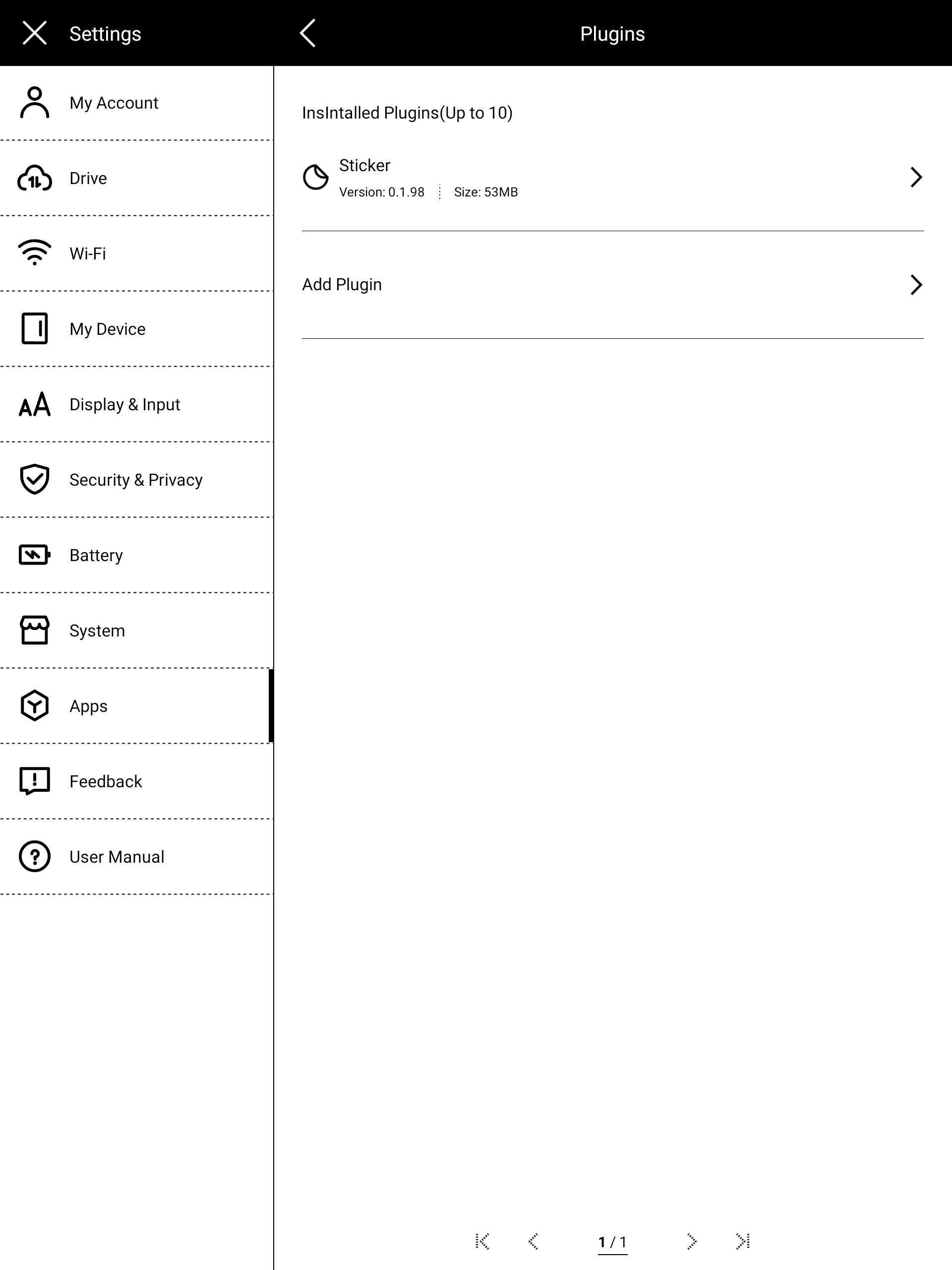
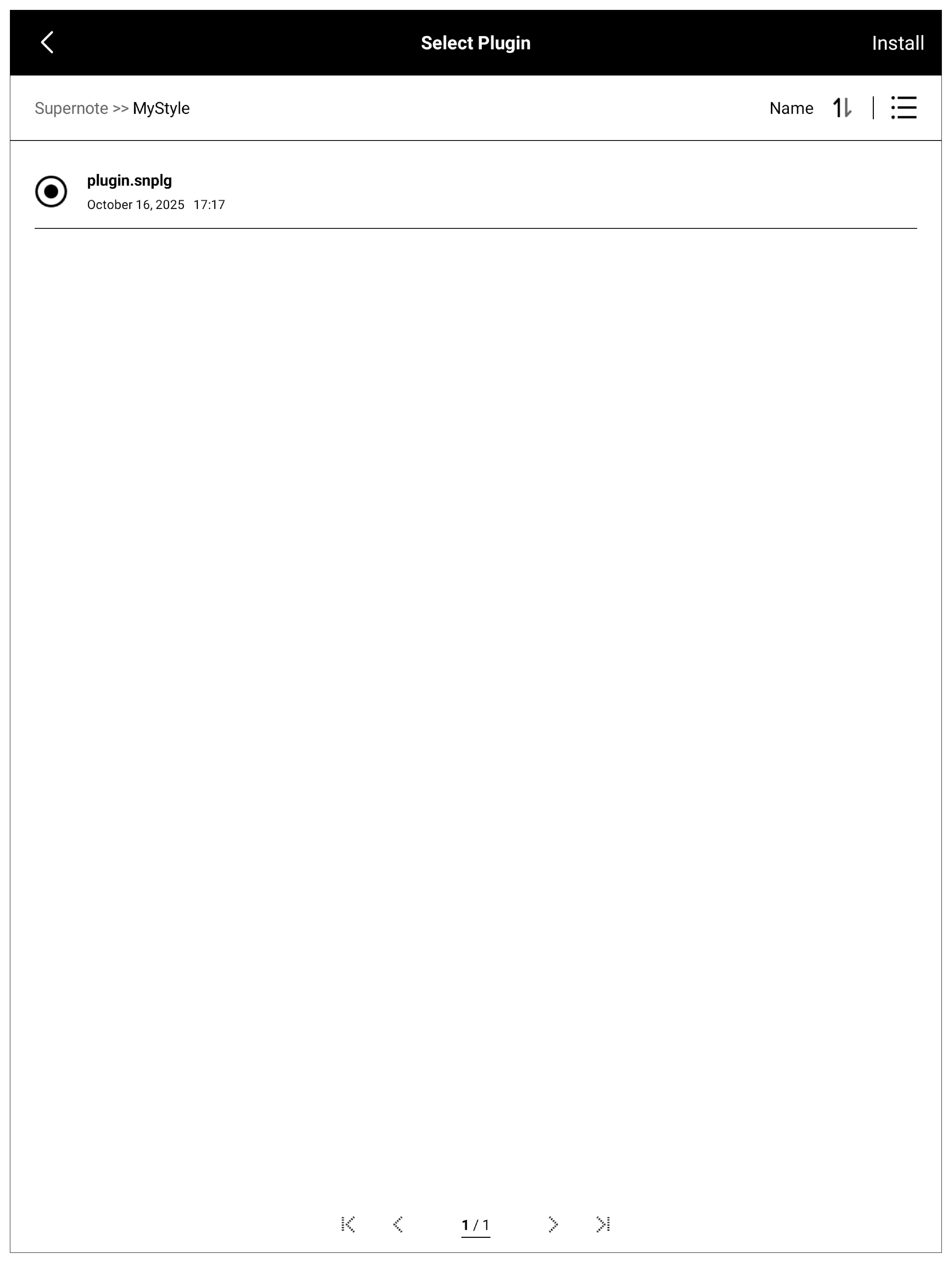
build\outputs\plugin.snplg 拷贝到 Supernote 设备的 MyStyle 目录下。 然后在设备上打开 “Settings -> Apps -> Plugins”: image 点击 “Add Plugin”,选择插件包并安装: image 安装完成后,NOTE/DOC 会在工具栏、套索工具栏或划词工具栏中展示该插件注册的按钮。