This chapter guides you through building a minimal runnable Supernote plugin:
- Register a toolbar button in NOTE/DOC
- Register a lasso toolbar button in NOTE/DOC
- Register a text-selection toolbar button in DOC
Clicking any of these buttons opens the same “Hello World” plugin UI. These three buttons represent three plugin entry points.
Create a Plugin Project
A plugin project is essentially a React Native project. We recommend creating it via the community CLI with npx (usually no global react-native-cli is needed).
If you have previously installed an older global react-native-cli (or global react-native), uninstall them first to avoid scaffold version conflicts:
npm uninstall -g react-native-cli react-native
Create a project with:
npx @react-native-community/cli init project_name --template @supernote-plugin/sn-plugin-template --version 0.79.2
project_name is your project name. You can replace it with your own; keep the other arguments unchanged. Example:
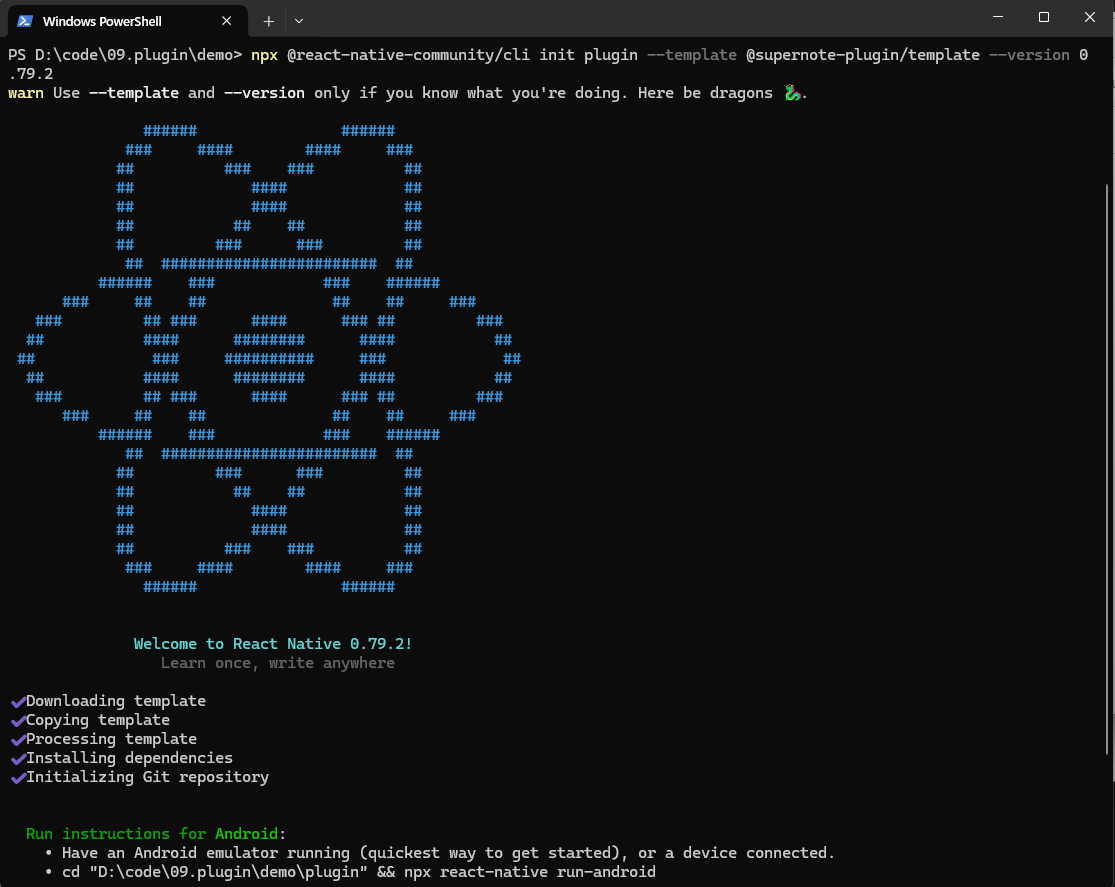
The plugin framework uses React Native 0.79.2. Your plugin project must use the same version; otherwise it may fail to run or be incompatible with the host.
After a few minutes, a plugin folder will be created in the current directory. The structure looks like:
plugin\
|-- .bundle\\ # Bundle configuration directory
| \\-- config
|-- .eslintrc.js # ESLint configuration file
|-- .gitignore # Git ignore file configuration
|-- .prettierrc.js # Prettier code formatting configuration
|-- .watchmanconfig # Watchman configuration file
|-- *App.tsx # Main application component
|-- Gemfile # Ruby dependency management file
|-- README.md # Project documentation
|-- __tests__\\ # Test files directory
| \\-- App.test.tsx # App component test file
|-- *android\\ # Android platform related files
| |-- app\\ # Android application configuration
| | |-- build.gradle # App-level Gradle build file
| | |-- debug.keystore # Debug signing file
| | |-- proguard-rules.pro # ProGuard obfuscation rules
| | \\-- src\\ # Android source code directory
| | |-- debug\\ # Debug version configuration
| | | \\-- AndroidManifest.xml
| | \\-- main\\ # Main source code
| | |-- AndroidManifest.xml
| | |-- java\\ # Java/Kotlin source code
| | \\-- res\\ # Android resource files
| |-- build.gradle # Project-level Gradle build file
| |-- gradle\\ # Gradle Wrapper
| | \\-- wrapper\\
| | |-- gradle-wrapper.jar
| | \\-- gradle-wrapper.properties
| |-- gradle.properties # Gradle properties configuration
| |-- gradlew # Gradle Wrapper script (Unix)
| |-- gradlew.bat # Gradle Wrapper script (Windows)
| \\-- settings.gradle # Gradle settings file
|-- app.json # React Native application configuration
|-- babel.config.js # Babel transpiler configuration
|-- buildPlugin.ps1 # PowerShell build script
|-- buildPlugin.sh # Shell build script
|-- *index.js # Application entry point
|-- ios\\ # iOS platform related files
| |-- .xcode.env # Xcode environment configuration
| |-- Podfile # CocoaPods dependency management
| |-- plugin\\ # iOS application directory
| | |-- AppDelegate.swift # iOS application delegate
| | |-- Images.xcassets\\ # iOS image assets
| | | |-- AppIcon.appiconset\\ # Application icon set
| | | | \\-- Contents.json
| | | \\-- Contents.json
| | |-- Info.plist # iOS application info configuration
| | |-- LaunchScreen.storyboard # Launch screen
| | \\-- PrivacyInfo.xcprivacy # Privacy information configuration
| \\-- plugin.xcodeproj\\ # Xcode project file
| |-- project.pbxproj # Project configuration
| \\-- xcshareddata\\ # Shared data
| \\-- xcschemes\\ # Build schemes
| \\-- plugin.xcscheme
|-- jest.config.js # Jest testing framework configuration
|-- metro.config.js # Metro bundler configuration
|-- package-lock.json # npm dependency lock file
|-- *package.json # Project dependencies and scripts configuration
|-- *buildPlugin.ps1 # Plugin packaging script (Windows)
|-- *buildPlugin.sh # Plugin packaging script (Linux/macOS)
\\-- tsconfig.json # TypeScript configuration file
This is a standard React Native layout. The starred files/dirs are the ones you will use most often:
index.js: plugin entry (initialization + button registration)
App.tsx: plugin UI entry (React component)
package.json: dependencies and scripts
android/: Android native code (when you need native capabilities)
buildPlugin.ps1 / buildPlugin.sh: plugin packaging scripts
The template includes the plugin SDK (npm package: sn-plugin-lib). Import APIs in code via import ... from 'sn-plugin-lib'.
Plugin Initialization
After creating the project, two key files are generated: index.js and App.tsx. They come from the template @supernote-plugin/sn-plugin-template.
index.js is the React Native entry and also the plugin entry. Plugin initialization must run here. You must call PluginManager.init() first; otherwise other plugin APIs will not work.
import { AppRegistry, Image } from 'react-native';
import App from './App';
import { name as appName } from './app.json';
import { PluginManager } from 'sn-plugin-lib';
AppRegistry.registerComponent(appName, () => App);
PluginManager.init();
In the snippet above, PluginManager.init() is called after AppRegistry.registerComponent(...) to complete initialization.
The rest is generated by the React Native template: AppRegistry.registerComponent(...) registers the UI entry component App.tsx.
Plugins support three entry buttons:
- Toolbar button: shown in NOTE/DOC toolbars
- Lasso toolbar button: shown after the user creates a lasso selection
- Selection toolbar button: DOC only; shown after selecting text in a DOC
Users can only enter the plugin from NOTE/DOC after you register these buttons.
Toolbar buttons must be registered in index.js, and must be called after AppRegistry.registerComponent(...) and PluginManager.init():
import { AppRegistry, Image } from 'react-native';
import App from './App';
import { name as appName } from './app.json';
import { PluginManager } from 'sn-plugin-lib';
AppRegistry.registerComponent(appName, () => App);
PluginManager.init();
PluginManager.registerButton(1, ['NOTE', 'DOC'], {
id: 100,
name: 'Side Button',
icon: Image.resolveAssetSource(
require('./assets/icon/icon.png'),
).uri,
showType: 1,
});
PluginManager.registerButton(type, appTypes, buttonConfig) takes three arguments:
type: button type. 1 toolbar, 2 lasso toolbar, 3 selection toolbar (DOC only)
appTypes: supported app types array: NOTE, DOC
buttonConfig: button properties:
{
id: unique button id; keep stable once defined
name: button label
icon: icon path (absolute path or uri)
showType: display mode. 0: do not show plugin UI; 1: show plugin UI (default 1)
}
When showType=1, tapping the button opens a full-screen container in PluginHost and renders the plugin UI.
When showType=0, no UI is shown; the plugin still receives the button event and can run background logic.
After packaging and installation, NOTE/DOC will show a plugin entry button in the toolbar:
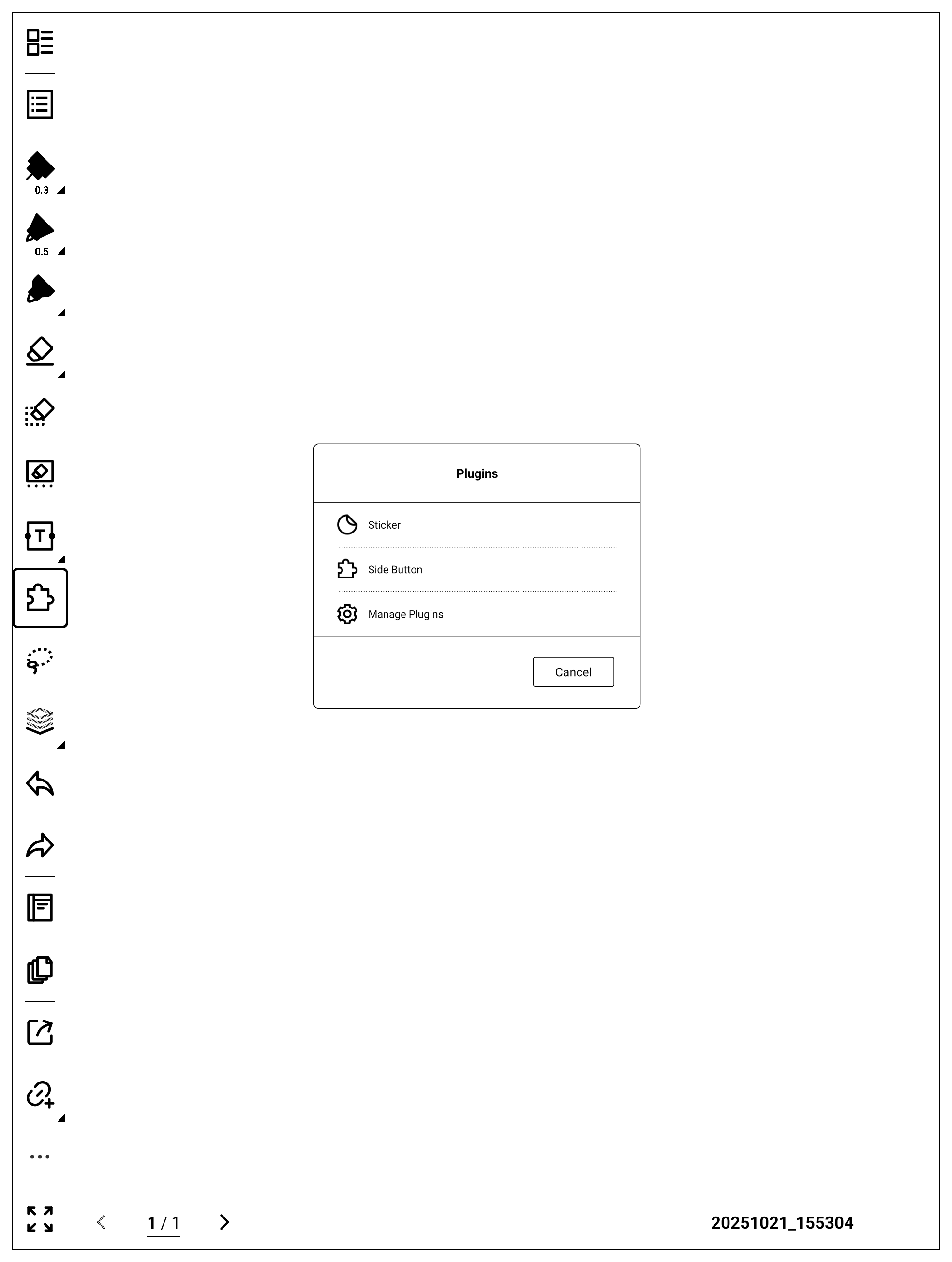
The example registers a button named “Side Button”.
Lasso toolbar buttons are also registered via PluginManager.registerButton:
import { AppRegistry, Image } from 'react-native';
import App from './App';
import { name as appName } from './app.json';
import { PluginManager } from 'sn-plugin-lib';
AppRegistry.registerComponent(appName, () => App);
PluginManager.init();
PluginManager.registerButton(1, ['NOTE', 'DOC'], {
id: 100,
name: 'Side Button',
icon: Image.resolveAssetSource(
require('./assets/icon/icon.png'),
).uri,
});
PluginManager.registerButton(2, ['NOTE', 'DOC'], {
id: 200,
name: 'Lasso Button',
icon: Image.resolveAssetSource(
require('./assets/icon/icon.png'),
).uri,
editDataTypes: [0, 1, 2, 3, 4, 5],
showType: 1,
});
Set the first argument to type=2 to register a lasso toolbar button.
Compared to toolbar buttons, lasso buttons add editDataTypes:
{
id: unique button id; keep stable once defined
name: button label
icon: icon path (absolute path or uri)
editDataTypes: lasso data type array; the button is shown only when selection matches
0: handwritten strokes
1: title
2: image
3: text
4: link
5: geometric shapes
showType: display mode. 0: do not show plugin UI; 1: show plugin UI (default 1)
}
Compared to toolbar buttons, lasso buttons use editDataTypes to control when the button should appear.
After packaging and installation, “Lasso Button” will appear when lasso selection is active:
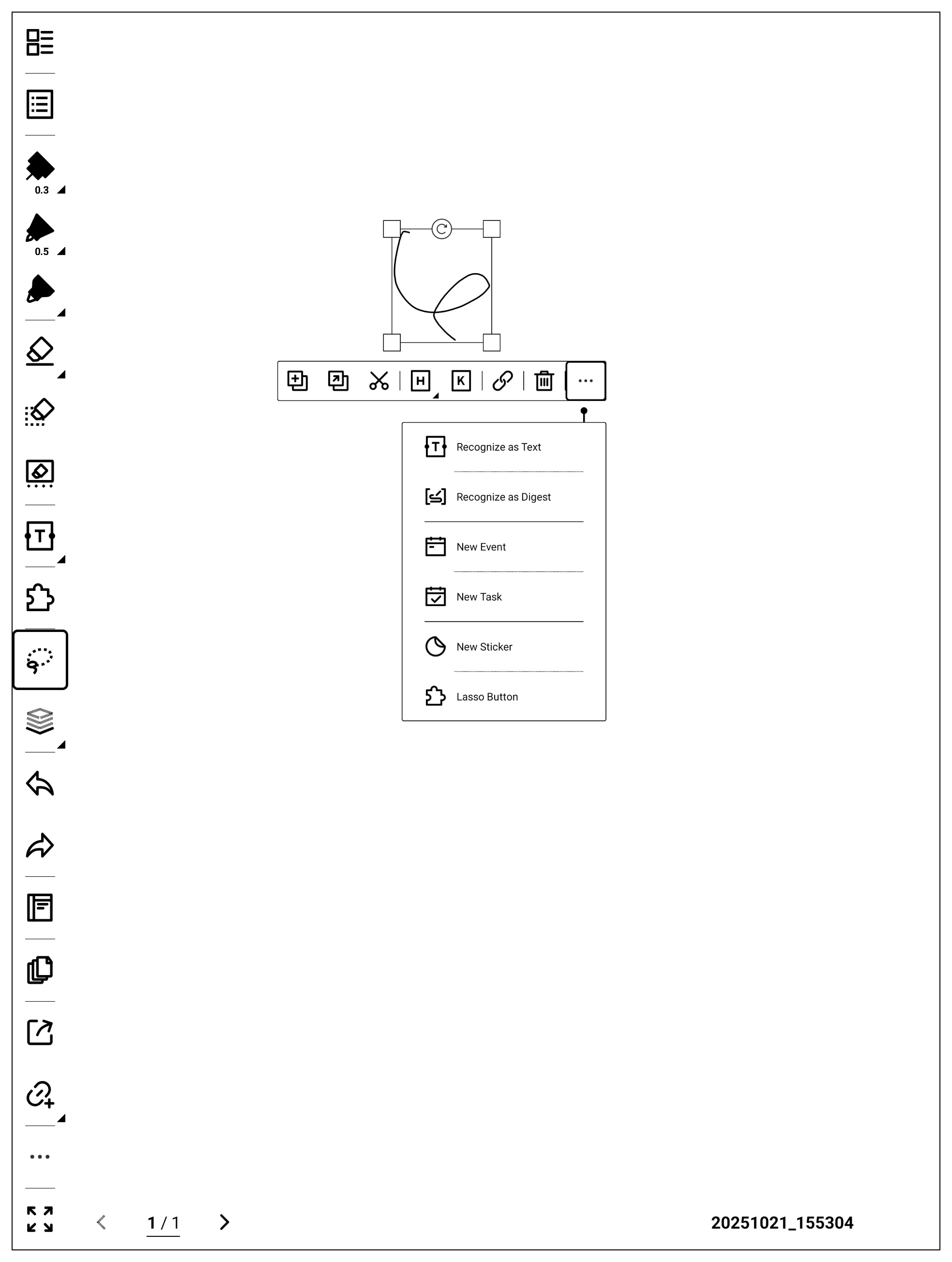
Selection toolbar buttons are DOC-only, and are also registered via PluginManager.registerButton:
import { AppRegistry, Image } from 'react-native';
import App from './App';
import { name as appName } from './app.json';
import { PluginManager } from 'sn-plugin-lib';
AppRegistry.registerComponent(appName, () => App);
PluginManager.init();
PluginManager.registerButton(1, ['NOTE', 'DOC'], {
id: 100,
name: 'Side Button',
icon: Image.resolveAssetSource(
require('./assets/icon/icon.png'),
).uri,
});
PluginManager.registerButton(2, ['NOTE', 'DOC'], {
id: 200,
name: 'Lasso Button',
icon: Image.resolveAssetSource(
require('./assets/icon/icon.png'),
).uri,
editDataTypes: [0, 1, 2, 3, 4, 5],
showType: 1,
});
PluginManager.registerButton(3, ['NOTE', 'DOC'], {
id: 300,
name: 'Selection Button',
icon: Image.resolveAssetSource(
require('./assets/icon/icon.png'),
).uri,
showType: 1,
});
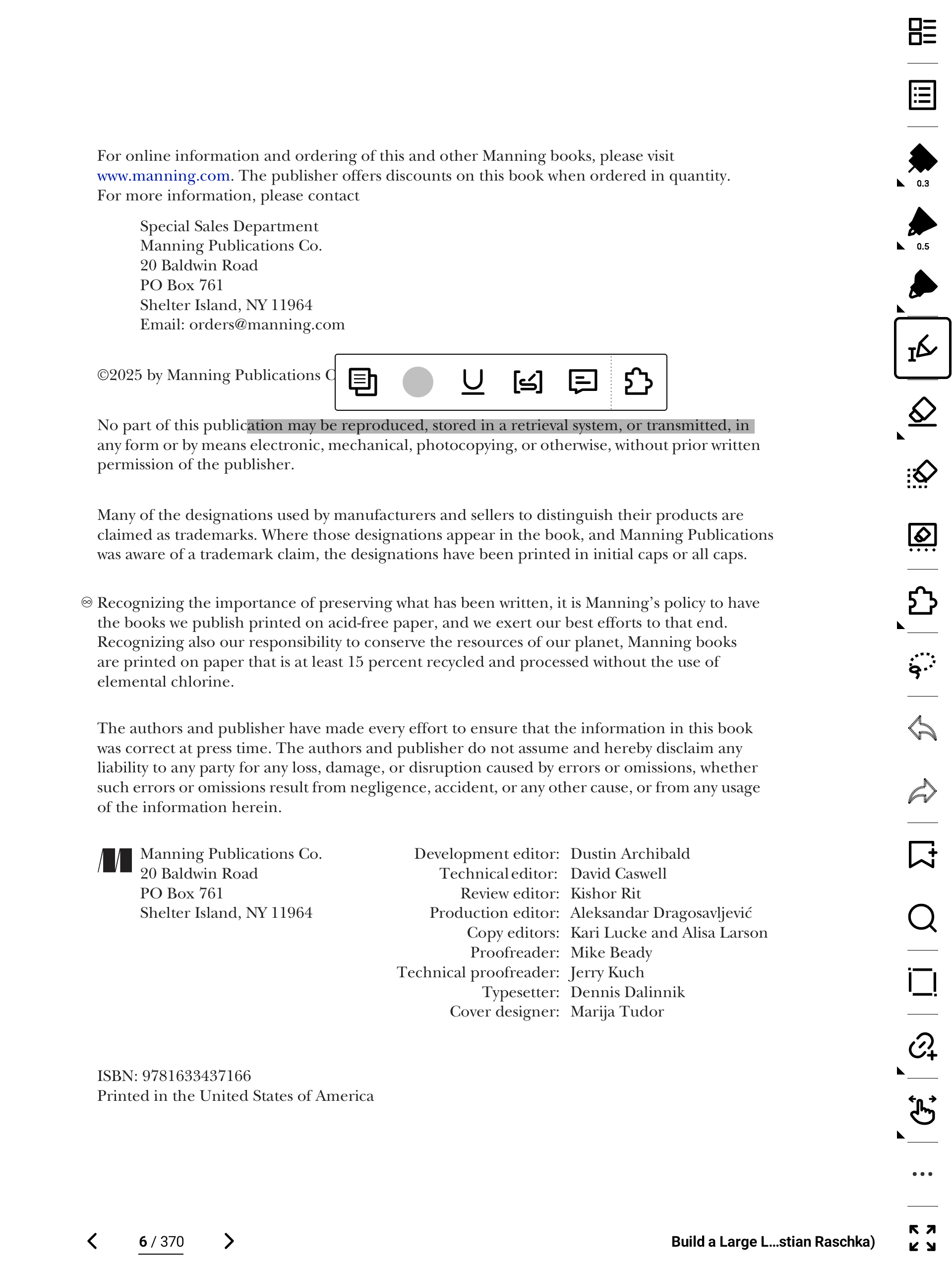
Set the first argument to type=3 to show the button in DOC’s selection toolbar:
Implement the Plugin UI
App.tsx is the UI entry component. The template provides a simple “Hello World” UI you can modify:
import React from 'react';
import {
StatusBar,
StyleSheet,
Text,
useColorScheme,
View,
} from 'react-native';
function App(): React.JSX.Element {
const isDarkMode = useColorScheme() === 'dark';
return (
<View style={styles.container}>
<StatusBar
barStyle={isDarkMode ? 'light-content' : 'dark-content'}
backgroundColor={isDarkMode ? '#000000' : '#ffffff'}
/>
<Text
style={[styles.helloText, {color: isDarkMode ? '#ffffff' : '#000000'}]}
>
Hello World
</Text>
</View>
);
}
const styles = StyleSheet.create({
container: {
flex: 1,
justifyContent: 'center',
alignItems: 'center',
backgroundColor: '#ffffff',
},
helloText: {
fontSize: 24,
fontWeight: '600',
textAlign: 'center',
},
});
export default App;
This code is generated by the template. You can modify the UI by editing App.tsx.
The default App.tsx shows “Hello World” centered on a white background:

Tap “Side Button / Lasso Button / Selection Button” to open the UI.
Package the Plugin
This section describes how to build a plugin package.
The template includes two packaging scripts: buildPlugin.ps1 (Windows) and buildPlugin.sh (Linux/macOS). Run the script from the project root.
On Windows:
On Linux/macOS:
On the first run, a PluginConfig.json is generated in the project root:
{
"name": "plugin",
"pluginKey": "plugin",
"pluginID": "98blcl1mp5fxamrm",
"iconPath": "",
"desc": "",
"versionCode": "1",
"versionName": "0.0.1",
"jsMainPath": "index"
}
PluginConfig.json is the plugin configuration file. It is generated only on the first packaging run; you should maintain it afterwards.
| Field | Description |
|---|
name | Plugin name. Editable. |
pluginKey | Must match the first argument of AppRegistry.registerComponent(...), otherwise the plugin won’t run. |
pluginID | Unique plugin id generated by the packaging script. Do not change it after generation, or it will be treated as a different plugin. |
iconPath | Plugin icon path (relative to project root). Fill it manually. |
versionCode | Plugin version code. |
versionName | Plugin version name. |
desc | Plugin description. |
jsMainPath | JS entry filename (without extension). Example: index. Keep it unchanged. |
author | Optional. Add manually; packaging does not generate it. |
After packaging, a build directory is created:
build\
|-- generated\\
| |-- PluginConfig.json
| |-- drawable-mdpi\\
| | \\-- assets_icon_icon.png
| \\-- plugin.bundle
\\-- outputs\\
\\-- plugin.snplg
generated contains intermediate artifacts. The final plugin package is build\\outputs\\plugin.snplg.
Install the Plugin
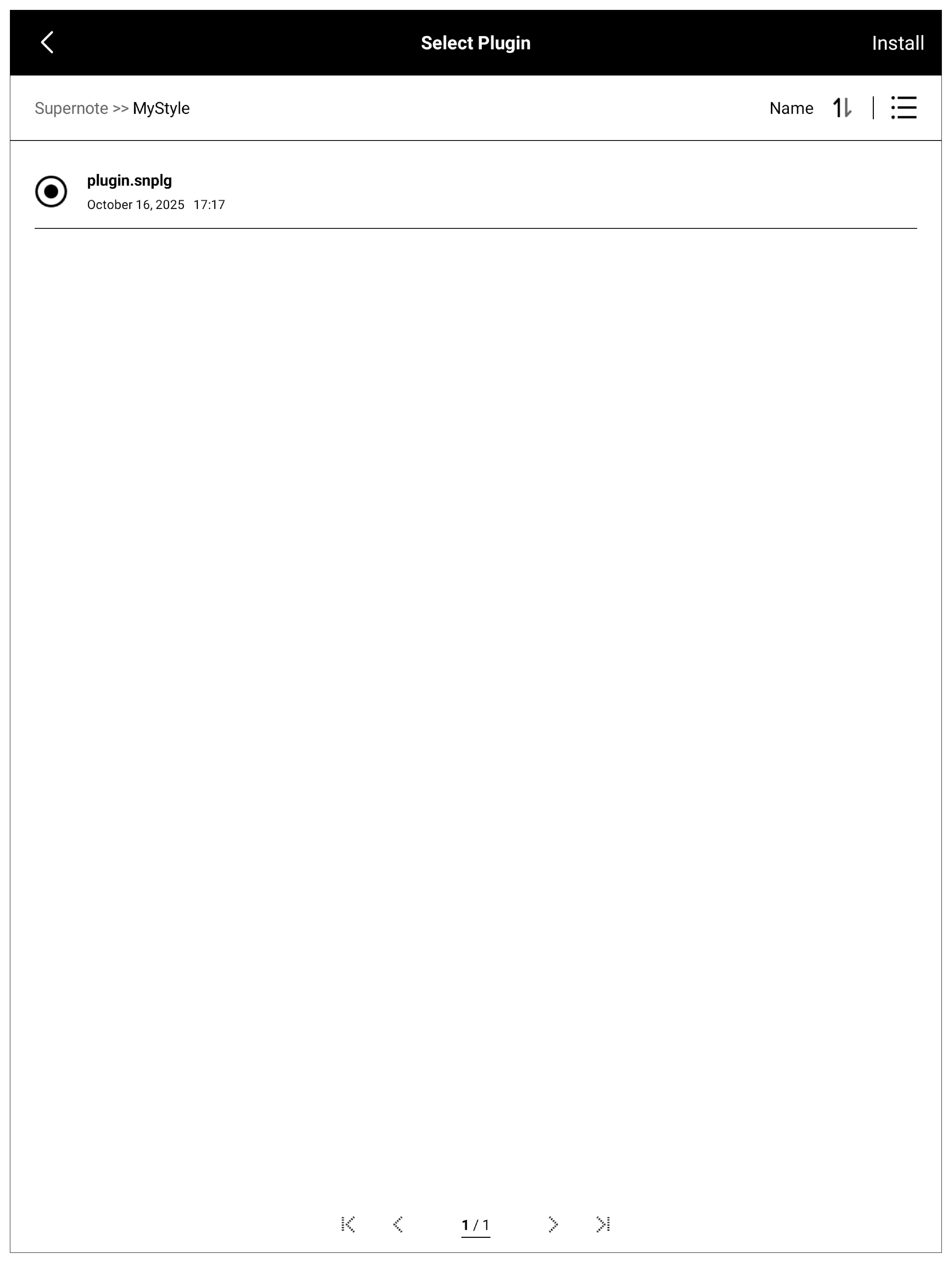
Copy build\\outputs\\plugin.snplg to the MyStyle directory on your SuperNOTE device.
Then open “Settings -> Apps -> Plugins”:
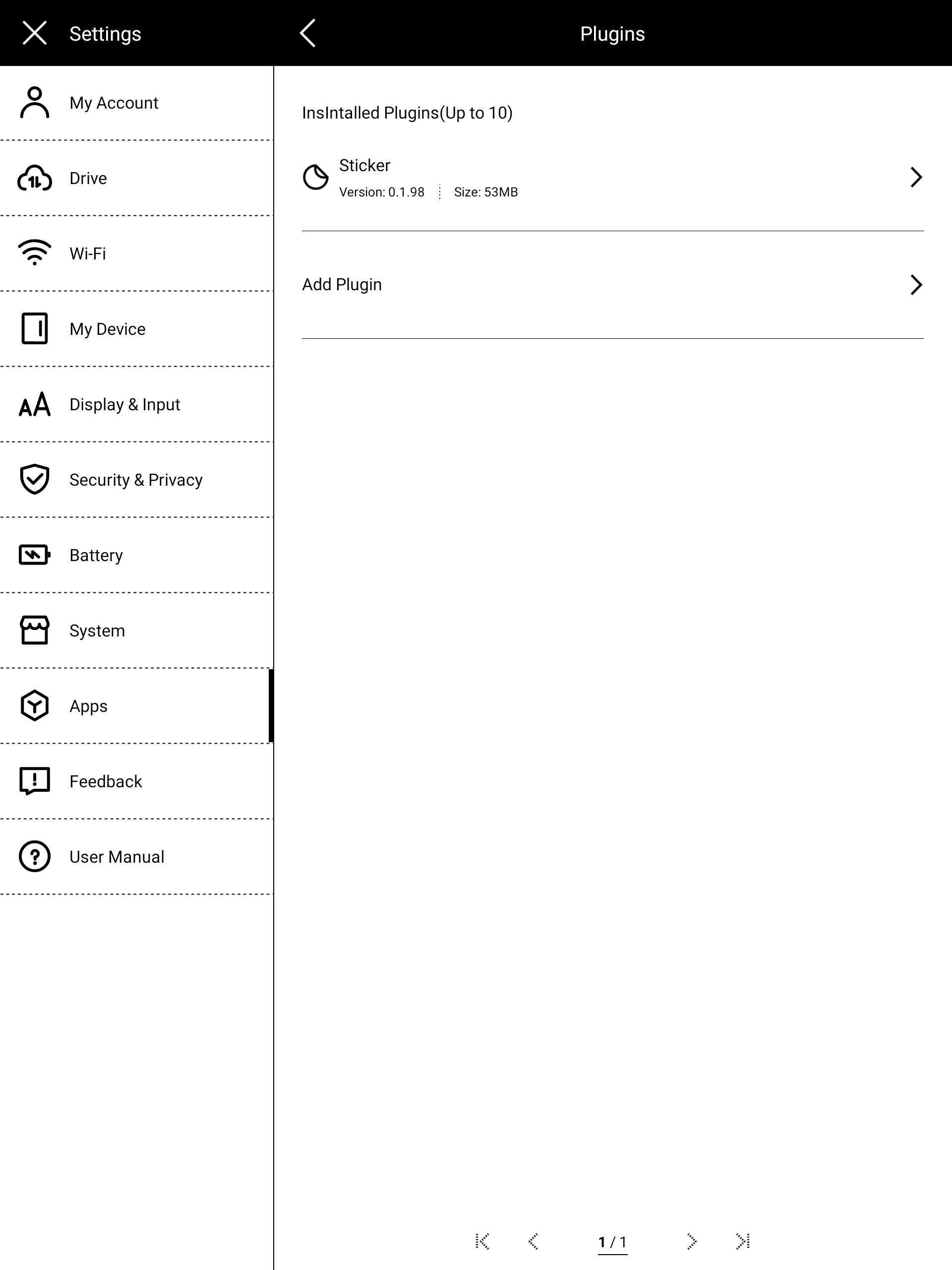
Tap “Add Plugin”, select the package, and install:
After installation, NOTE/DOC will show your registered buttons in the toolbar, lasso toolbar, or text-selection toolbar.