

sn-plugin-lib, or directly uses Android’s official file/network APIs, RN’s official file/network APIs, or the plugin’s own C/C++ code to read/write files or access the network, it will be intercepted by the same permission system as long as it targets the restricted scope (see Default Accessible Scope below). This cannot be bypassed.
This chapter covers the overall design of the permission system. See the following API pages for interface details:
- Check permission status:
hasPermission - Request a permission:
requestPermission
Permission Types
How to Declare Permissions
Before callingrequestPermission, you must first declare the permission names you intend to use in the uses-permissions field of PluginConfig.json at the plugin’s root (a string array). Calling requestPermission without declaring the permission first will fail (error code 1500).
See the uses-permissions row in PluginConfig.json field reference.
How to Request Permissions
Every time the plugin opens, and before using any feature that needs the permission, we recommend following the flow below (see Permission Request Guidelines for details):- Call
hasPermission(permission)to check the current status:1means already granted, so you can call the related APIs directly - If it returns
0(not granted), callrequestPermission(permission, desc?)to request it: if the permission has not been set to “don’t allow”, the dialog in step 3 appears; if it has already been set to “don’t allow”, only the prompt in step 4 that guides the user to the system settings appears - The user chooses among (the dialog defaults to “Allow this time only”):
- Allow this time only: returns
1 - Always allow: returns
2 - Don’t allow: returns
0 - Tapping Cancel without confirming a choice: nothing is granted this time, and the call returns
-1. This is not recorded as “Don’t allow”. CallingrequestPermissionagain shows the three-option dialog
- Allow this time only: returns
- If the user has previously chosen “Don’t allow”, calling
requestPermissionagain shows a dialog that guides the user to the system settings; after that dialog is dismissed, the result is still0and the three-option dialog is not shown again
FILE:READ), and it defaults to “Allow this time only”. The line under the title is the system default description for read permission, not desc. desc is not shown on this dialog. Write, delete, and internet permissions use different titles and default descriptions:
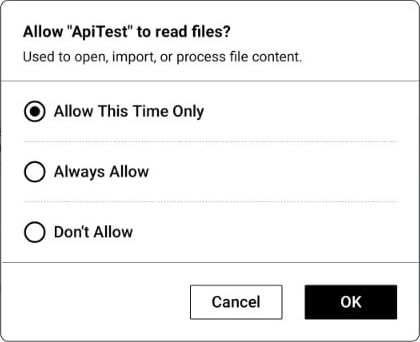
desc is omitted; passing desc replaces that body:
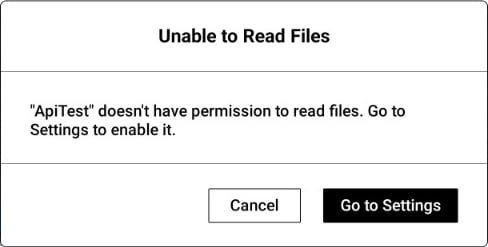
“Allow this time only” is valid only for the current plugin session: it is revoked when the plugin exits or is closed, and must be requested again the next time the plugin opens. Only “Always allow” is persisted and remains valid after restarting the plugin. It’s recommended to make file read/write calls while the plugin is actively running.
Default Accessible Scope
- The plugin’s private directory (
/data/data/com.ratta.supernote.pluginhost/files/plugins/<pluginID>): the only path that is exempt from any permission by default — reading, writing, and deleting are all allowed without requesting anything - The
Document,EXPORT,INBOX,MyStyle,Note, andSCREENSHOTdirectories under shared storage (sdcard): none of these permissions are granted by default; reading/writing/deleting each requires explicitly requestingFILE:READ/FILE:WRITE/FILE:DELETE - External SD cards, OTG storage, and other removable storage: access is likewise governed by
FILE:READ/FILE:WRITE/FILE:DELETE; the plugin calls the samehasPermission/requestPermissionAPIs and does not need to handle this differently - Any other path outside the scope above: cannot be accessed by requesting a permission
Permission Dependencies
The table below lists typicalsn-plugin-lib APIs only as examples. If plugin code bypasses sn-plugin-lib and directly uses Android/RN/C++ official APIs to access files outside the directories above or to make network requests, it will still be intercepted by the same permission system — the APIs below are not the only ones affected.
deleteElements/deletePageElements and similar “delete element” methods remove note content, which is essentially a file modification, so they are validated against FILE:WRITE. The FILE:DELETE permission is used for file-level deletion and other scenarios.
Common Error Codes
Permission Request Guidelines
Every time the plugin opens, and before every feature that needs a permission, follow “declare → check → request”. Make sure the permission has been declared inPluginConfig.json as described in How to Declare Permissions.
- Before each entry into the plugin or use of a related feature, call
hasPermissionfirst.1means the permission is already granted, so call the related APIs directly without requesting again - If it returns
0, callrequestPermission. For the full flow and return values, see How to Request Permissions
- Allow this time only: for when it expires, see the note in How to Request Permissions above. If
requestPermissionis not called again the next time the plugin opens, or the next time the feature is used, no authorization dialog appears: read and write calls fail (error codes1503,1501; see Common Error Codes), and network requests fail as well - Always allow: this state can only be changed under plugin management in the system settings. Once granted,
hasPermissionreturns1and you do not need to callrequestPermissionagain, so checking every time does not trigger the dialog repeatedly (the same applies once “Allow this time only” has been chosen within the current session) - Don’t allow: only the prompt that guides the user to the system settings appears, and the three-option dialog is not shown again. See step 4 in How to Request Permissions